Templates
Deploy pre-configured applications with one click. No plitho.yml needed.
Available Templates
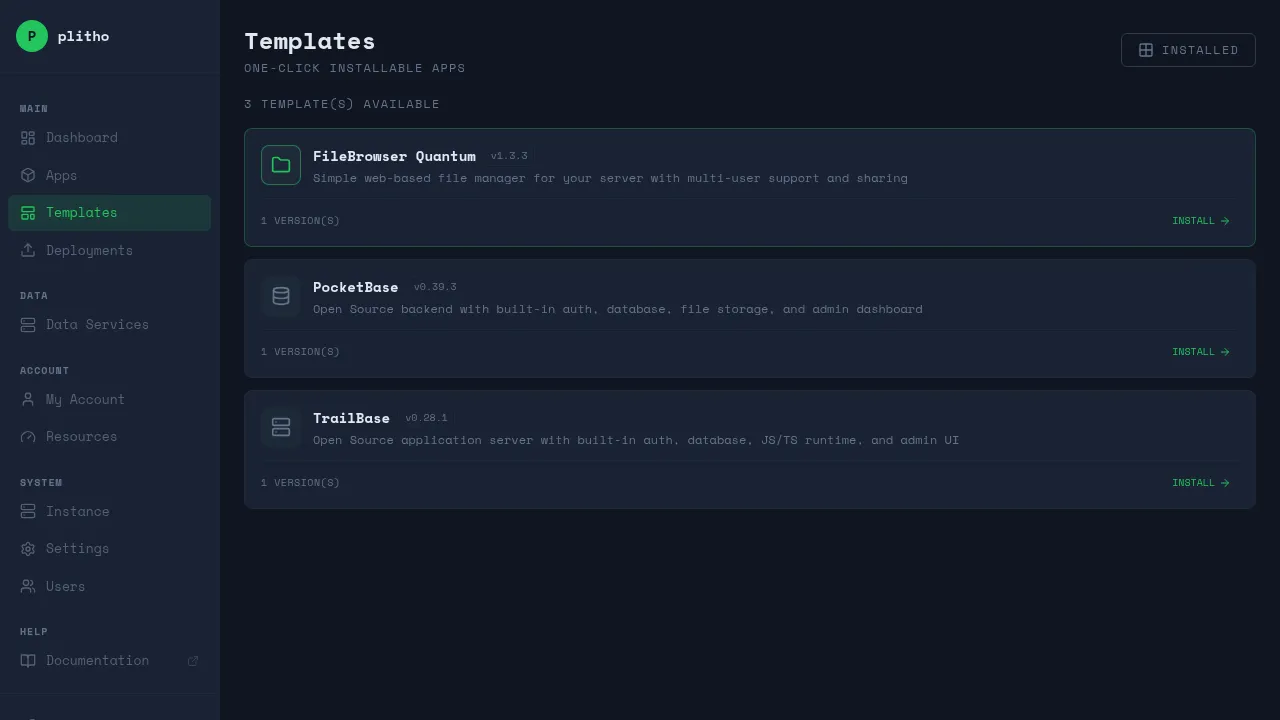
| Template | Description |
|---|---|
| PocketBase | Open Source backend with auth, database, file storage, and admin dashboard |
| TrailBase | Open Source app server with auth, database, JS/TS runtime, and admin UI |
| FileBrowser Quantum | Web-based file manager with multi-user support and sharing |
Installing a Template
- Go to Templates
- Click INSTALL on the template you want
- Configure the settings (name, version)
- Click Install
Plitho downloads the template, configures the runtime, sets up the database if needed, and starts the application.
Using a Template
After installation, the template app appears in your Apps list like any other app. You can:
- View logs
- Manage environment variables
- Add custom domains
- Set resource limits
- All other app management features
Upgrading a Template
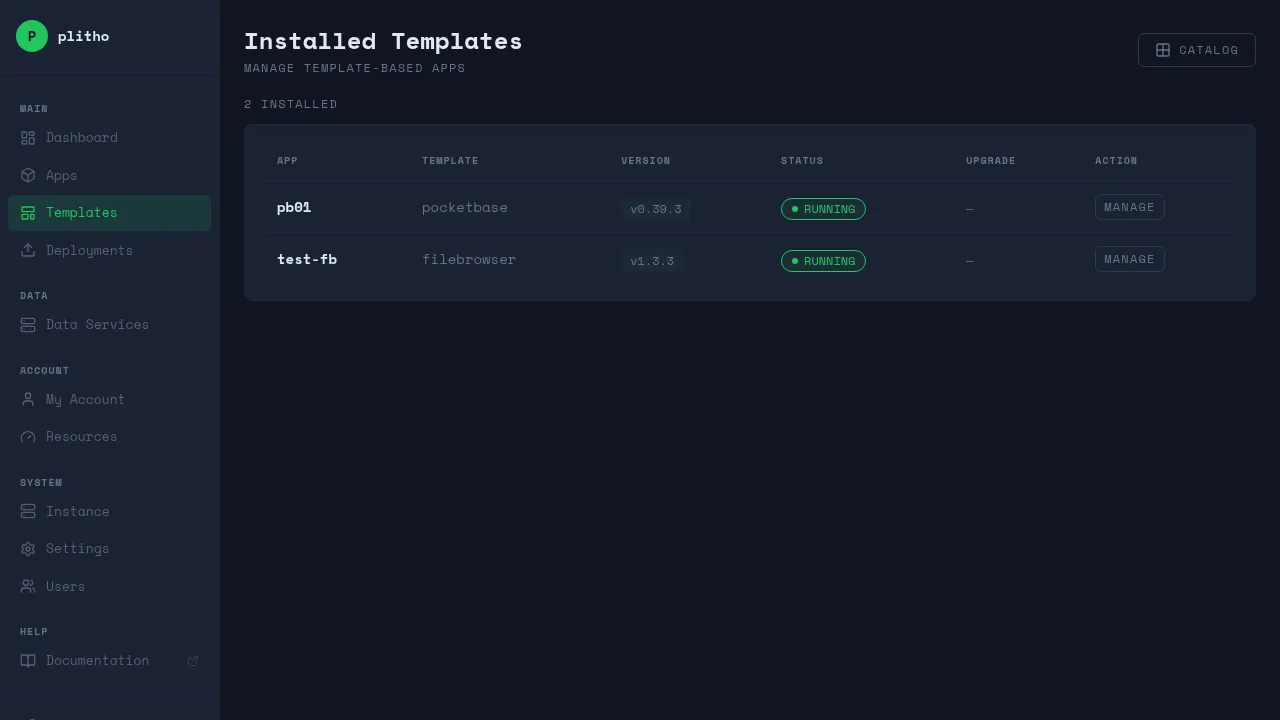
- Go to Templates → INSTALLED
- Find the template
- Click Upgrade
- Select the new version
Warning
Upgrades may include database migrations. Back up your data before upgrading.
How Templates Work
Templates are pre-packaged apps with:
- A defined runtime and dependencies
- Default configuration
- Database setup (if needed)
- Health checks and process management
They're a quick way to get common tools running without writing a plitho.yml from scratch.