SSH Keys
SSH keys are how you push code to Plitho. Your key proves your identity — no passwords needed for git push.
Two Types of Keys
| Key | What it's for | Where to manage |
|---|---|---|
| Account key | Your personal SSH key for git push and SSH commands | My Account in the dashboard |
| App key | Per-app key for fine-grained access (e.g., CI/CD) | Apps → your app → SSH tab |
Your account key is what you use day-to-day. App keys are optional — for granting specific apps access to specific keys.
Adding Your SSH Key
- Go to My Account in the dashboard
- Paste your SSH public key
- Click ADD KEY
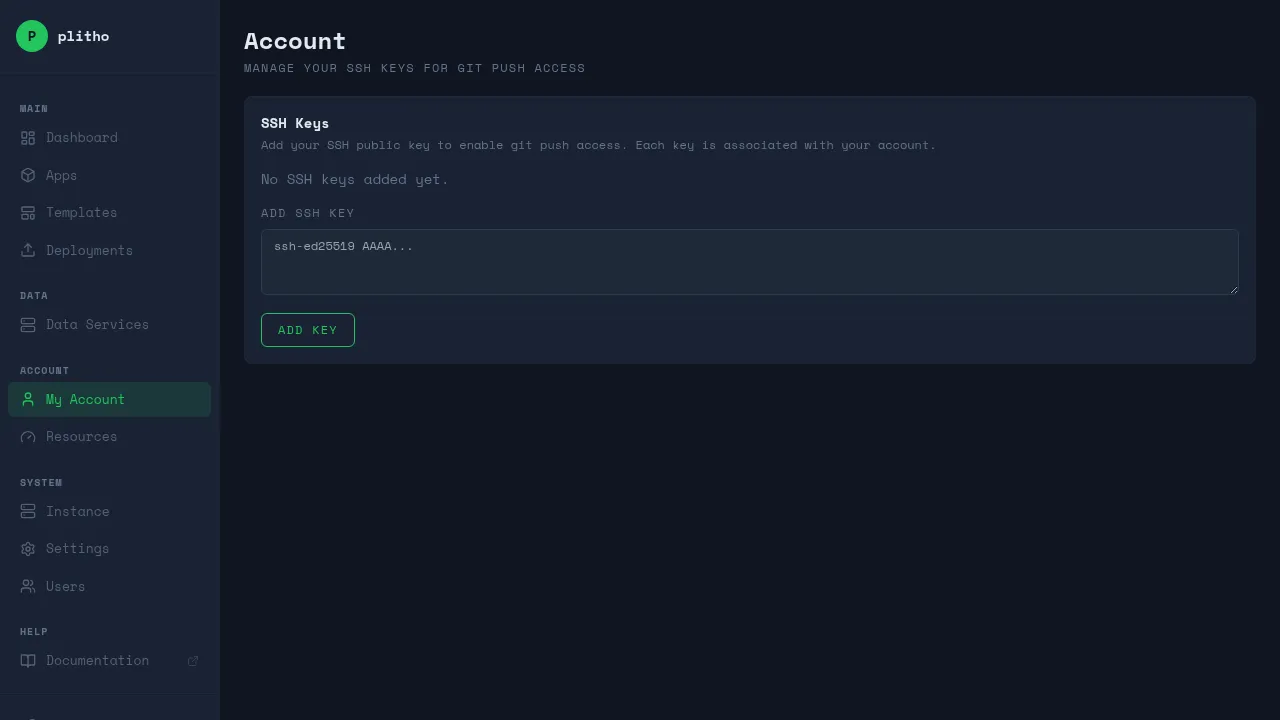
Getting Your Public Key
# Ed25519 (recommended)
cat ~/.ssh/id_ed25519.pub

# RSA (legacy)
cat ~/.ssh/id_rsa.pub
Copy the entire line.
Don't Have a Key?
Generate one:
ssh-keygen -t ed25519 -C "your-email@example.com"
Then copy the public key as shown above.
How Key Authentication Works
When you git push or use SSH commands:
- The SSH server looks up your public key
- It finds which user owns that key
- It checks if you have access to the requested app
- Admin users can access all apps
- Regular users can only access apps they own
If you try to push to an app you don't own:
Permission denied: you don't own this app
Adding the Git Remote
git remote add plitho ssh://plitho@your-server:2222/myapp
Note
The SSH username is always plitho. Your identity is determined by your SSH key, not the username in the URL.
Removing a Key
Click Remove next to the key in My Account.
Warning
Make sure you have another key added before removing your only key, or you'll be locked out of SSH access.
Per-App Keys
For fine-grained access (e.g., giving a CI/CD system access to one app):
- Go to Apps → your app → SSH tab
- Add the key
This key can only push to that specific app, not your other apps.
SSH Commands
You can also manage apps via SSH:
ssh -p 2222 plitho@your-server ls              # list your apps
ssh -p 2222 plitho@your-server start myapp     # deploy/start
ssh -p 2222 plitho@your-server stop myapp      # stop
ssh -p 2222 plitho@your-server log myapp       # view logs
See SSH Commands Reference for the full list.
SSH Shell Access
You can enable interactive shell access for your apps:
- Go to Apps → your app → Overview tab
- Click Enable under "SSH Shell Access"
Once enabled, you can SSH into your app:
ssh -p 2222 plitho@your-server shell myapp
This gives you a jailed shell session inside your app's environment with:
- Resource-constrained, namespace-isolated sessions
- 30-minute idle timeout
- Per-user concurrent session limits (default 3)
- Access to your app's filesystem and environment